
How to Improve a DSE Workstation

How to Improve a DSE Workstation

An uncomfortable workstation does not always need to be replaced.

A chair may simply be set too low. The monitor might be positioned to one side, while the keyboard and mouse encourage the user to stretch forward. Even good-quality equipment can cause difficulties when the individual components have not been arranged to work together.

Improving a DSE workstation should therefore begin with adjustment rather than purchasing.

This guide explains how employers and employees can make practical improvements to office, home and hybrid workstations.
Begin With the Person Using the Workstation

There is no single workstation arrangement that suits everybody.

People differ in height, proportions, mobility and the tasks they perform. A setup that works for one employee may be uncomfortable for another, even when they use the same desk and chair.

Begin by asking the employee about their normal working day. Consider how long they use the screen, which equipment they use most frequently and whether particular tasks create difficulty.

The workstation can then be adjusted around the individual rather than expecting the person to adapt to a fixed arrangement.

Adjust the Chair First

The chair provides the foundation for the rest of the workstation.

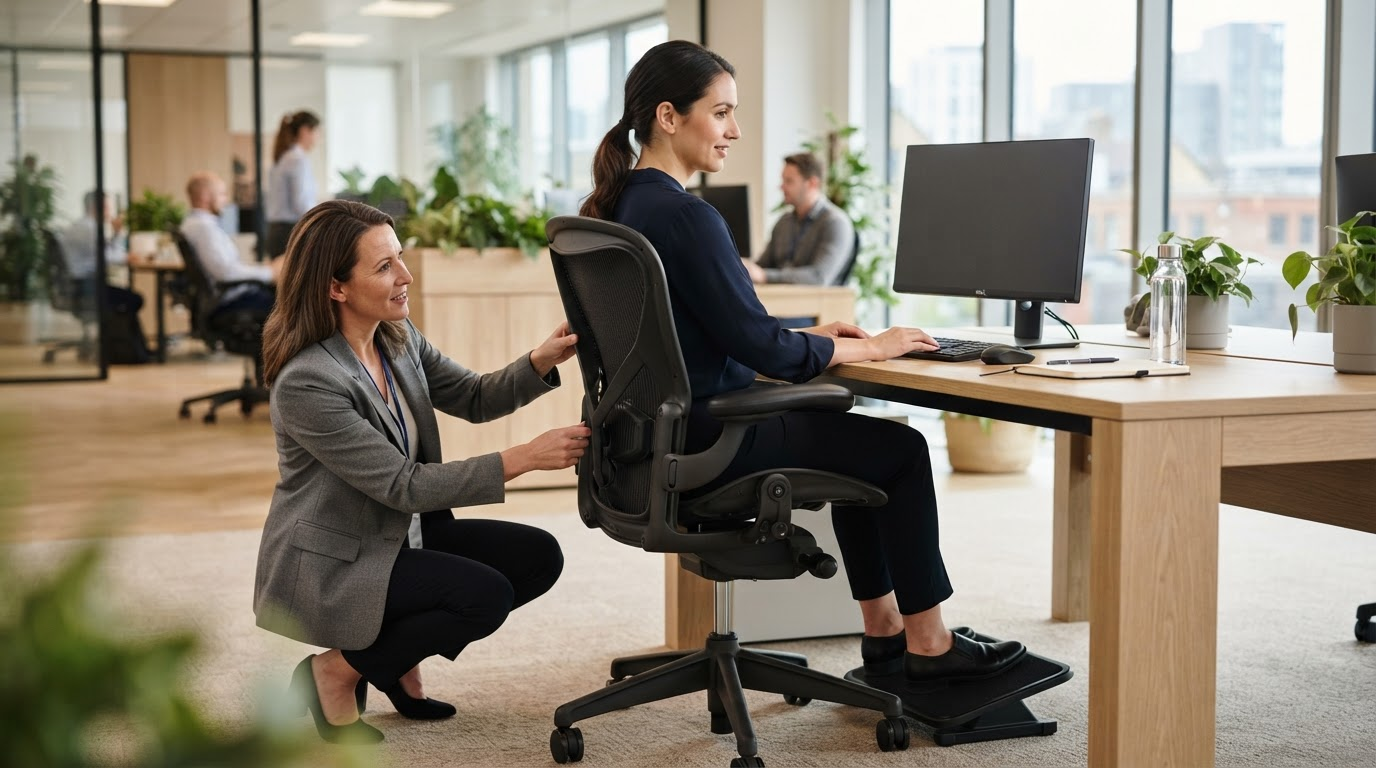
Set the seat height so the employee can use the keyboard with relaxed shoulders and their forearms roughly horizontal. The elbows should remain close to the body rather than being lifted or extended forward.

The backrest should support the user and allow them to sit comfortably without leaning towards the screen. Where the chair allows it, adjust the height and angle of the backrest to suit the individual.

Armrests should not prevent the chair from moving close enough to the desk. If they force the employee to sit too far away, they may need to be lowered or repositioned.

Feet should be supported. If the chair needs to be raised to achieve a suitable working height and the employee’s feet no longer rest comfortably on the floor, a footrest may help.

Position the Keyboard and Mouse

The keyboard should normally sit directly in front of the user, with enough space to support the hands and forearms when required.

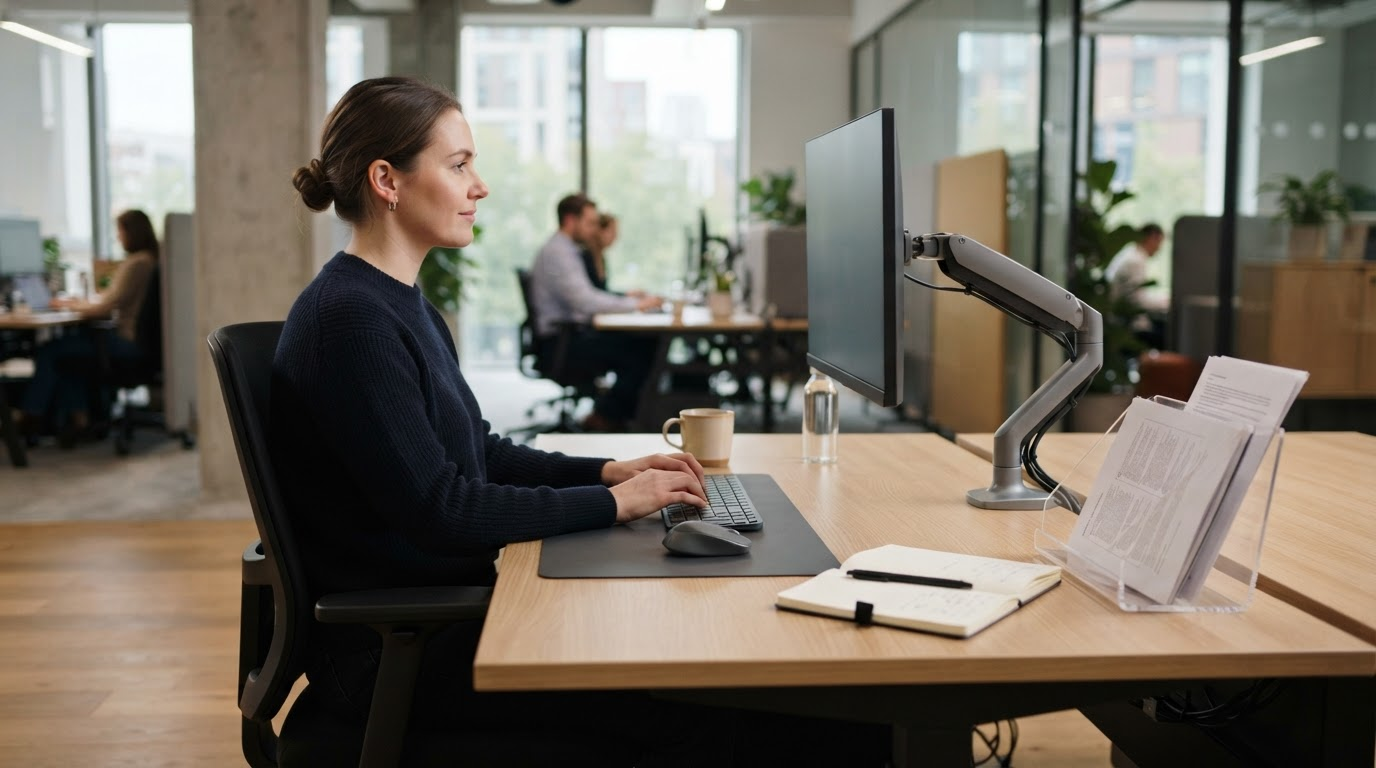
It should not be placed so far away that the employee needs to reach across the desk. The shoulders should remain relaxed and the wrists should not be held at an excessive angle.

Place the mouse close to the keyboard so it can be used without repeatedly extending the arm. The employee should have enough clear space to move it comfortably.

People who rely heavily on keyboard shortcuts, numerical entry or specialist software may have different requirements. The arrangement should reflect the employee’s actual tasks rather than a standard desk photograph.

How to Improve a DSE Workstation

Set the Screen at a Comfortable Height

The monitor should be positioned directly in front of the user unless their work requires a different arrangement.

As a general starting point, the top of the screen should be around eye level, although the correct position will depend on the individual, the size of the monitor and whether they wear particular types of glasses.

The screen should be far enough away to view comfortably without leaning backwards or forwards. Text size and display settings can be adjusted if the employee struggles to read the screen at an appropriate distance.

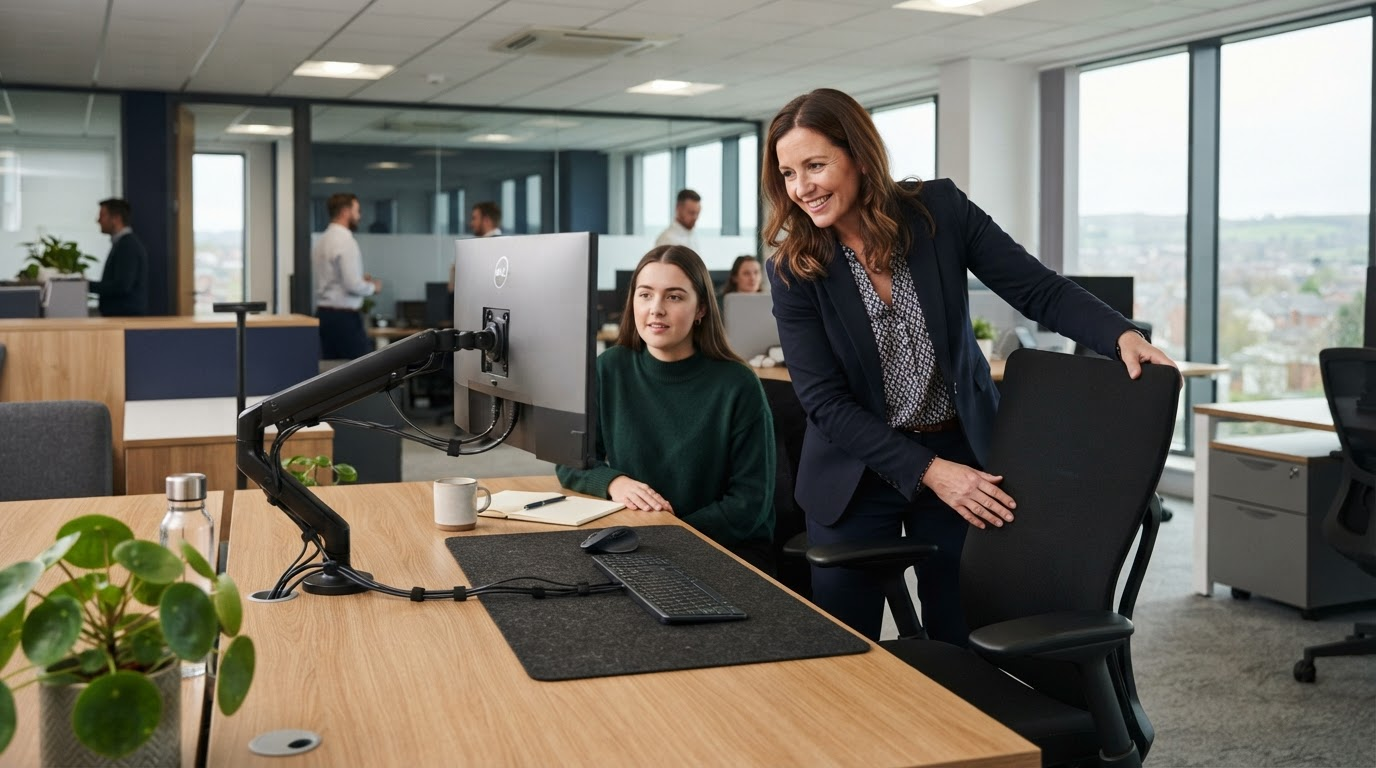
Monitor arms and adjustable stands can make positioning easier, particularly at shared workstations. However, stable monitor risers may be sufficient where frequent adjustment is not required.

Consider Multiple Screens

Employees using two or more monitors should position them according to how frequently each one is used.

If one screen is the main display, it should normally sit directly in front of the user with the secondary screen beside it. If both are used equally, they can be positioned together with their meeting point in front of the employee.

The screens should be at a similar height and viewing distance where practical.

A poor arrangement can lead to repeated head turning or cause the employee to work with their body facing in a different direction from the chair and keyboard.

Improve Laptop Workstations

Laptops are convenient, but their attached keyboard and screen make it difficult to position both elements independently.

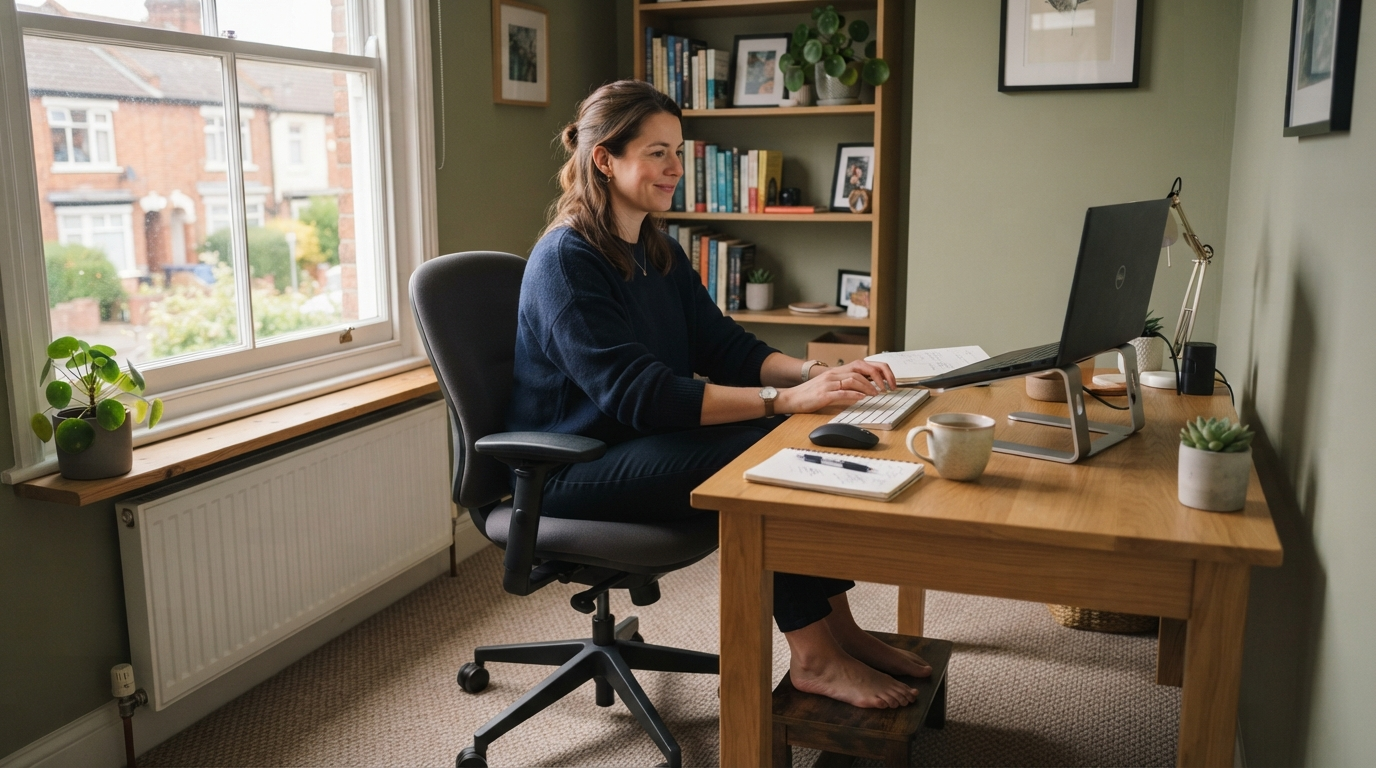
For regular laptop work, raising the screen and using a separate keyboard and mouse can create a more practical setup. A laptop stand may help, provided it is stable and suitable for the equipment.

The separate keyboard and mouse should then be positioned in the same way as those used with a desktop computer.

Occasional short-term laptop use may require a different response from an employee who works on one throughout the day. Equipment decisions should reflect the duration and nature of the work.

How to Improve a DSE Workstation

Organise the Desk Around the Task

Frequently used items should be placed within easy reach.

Documents, telephones and other equipment can contribute to awkward movement when positioned carelessly. Employees who regularly refer to paperwork may benefit from a document holder placed close to the screen.

The desk should also provide sufficient room for the employee to change position. Boxes, computer equipment and stored items beneath the desk can restrict leg movement even when the surface appears spacious.

Removing unnecessary items can sometimes improve a workstation without adding any new equipment.

Reduce Glare and Reflections

Screens should be positioned to reduce reflections from windows and overhead lighting.

Moving or angling the monitor may solve the problem. Blinds can help control strong natural light, while adjustments to screen brightness and contrast may improve visual comfort.

The employee should not have to work in a dark room simply to see the screen. The goal is balanced lighting that supports screen use, paperwork and movement around the workplace.

Lighting problems may affect several employees, so the wider office environment should be considered alongside individual workstations.

Encourage Movement and Changes of Activity

A well-adjusted workstation does not remove the need to move.

Remaining in one fixed position for prolonged periods can still become uncomfortable. Work should be organised so employees can take breaks from DSE tasks or change to a different activity.

Shorter, more frequent changes are generally more useful than relying entirely on one long break after several hours of screen work.

Employees can also vary their posture, stand during appropriate tasks or move away from the desk for conversations and other activities.

A sit-stand desk may provide additional choice, but it should not be treated as a requirement or a reason to remain at the workstation for longer.

Improve Home Workstations Practically

Home workers may have less space and use furniture that was not originally intended for office work.

The priority is to create a stable setup that supports the employee for the amount of time they work there. A separate keyboard and mouse can improve regular laptop use, while an appropriate chair may provide more adjustment than domestic seating.

Not every home office needs to replicate a large corporate workstation. Recommendations should be practical, proportionate and based on the employee’s needs.

Where a suitable setup cannot be achieved with the available space and equipment, the employer may need to consider alternative arrangements.

How to Improve a DSE Workstation

Know When Equipment May Need Replacing

Adjustment should come first, but existing equipment will not always be suitable.

A chair may lack the necessary adjustments, no longer provide dependable support or be the wrong size for the user. A desk might restrict legroom, while a monitor stand may offer insufficient height adjustment.

New equipment should be selected to address an identified requirement. Buying a product because it is described as ergonomic does not guarantee that it will suit the user.

Where an employee has persistent discomfort, a medical condition, a disability or complex requirements, specialist occupational-health or ergonomic advice may also be appropriate.

Check Whether the Changes Have Worked

Improvement should not end when the workstation has been adjusted.

Ask the employee to use the new arrangement and report whether it has addressed the original difficulty. Some settings may need to be refined once the person has worked with them for a period.

The assessment record should be updated with the action taken and any further recommendations.

This follow-up turns a workstation adjustment into a managed process rather than a one-off exercise.

Improve Your Workstations With Lomas Office

Lomas Office helps organisations in Blackburn and across Lancashire create practical, comfortable workstations for office, home and hybrid employees.

We can assess existing setups, demonstrate adjustments and advise where additional equipment may be appropriate. Our furniture and accessories include ergonomic task seating, desks, monitor arms, footrests and other workstation solutions.

We begin by understanding the employee and making effective use of the equipment already available.

Speak to Lomas Office about improving your organisation’s DSE workstations.

Frequently Asked Questions

Does an uncomfortable workstation always need a new chair?

No. The existing chair may simply need adjusting correctly. Replacement should be considered when the chair is unsuitable, damaged or unable to meet the user’s requirements.

What height should a computer monitor be?

As a general starting point, the top of the screen should be around the user’s eye level. Individual requirements, monitor size and eyewear may affect the most comfortable position.

Is a laptop stand enough for regular laptop work?

A stand raises the screen, but a separate keyboard and mouse will normally be needed so the employee can work without reaching towards the raised laptop.

Are sit-stand desks necessary for DSE users?

No. They can provide additional movement and choice, but they are not essential for every employee. Their suitability should be considered as part of the complete workstation.

How quickly should workstation recommendations be completed?

Actions should be prioritised according to the risk and the employee’s needs. Simple adjustments can often be made immediately, while equipment changes may require further consideration.

Should the workstation be checked after improvements are made?

Yes. Follow-up helps confirm that the changes have addressed the original issue and identifies whether further adjustment or support is required.

We are using cookies to give you the best experience. You can find out more about which cookies we are using or switch them off in privacy settings.
AcceptPrivacy Settings

GDPR